 Alan Schwegler
Print Engine: template printing that lives on the printer.
Brady's industrial printers could print labels — but populating a template still meant a PC and a desktop app. Print Engine moved that workflow onto the printer itself: transfer a template to the device, fill in its fields on the touchscreen, and print — no computer required. I led the UX across two releases, ran the in-person usability study, and turned what we learned into the shipping experience.
The work at a glance.
- The problem
- Template printing depended on a PC, even when customers were standing at the printer.
- My responsibility
- Led UX across two releases, including prototypes, usability research, and collaboration with Firmware.
- The key decision
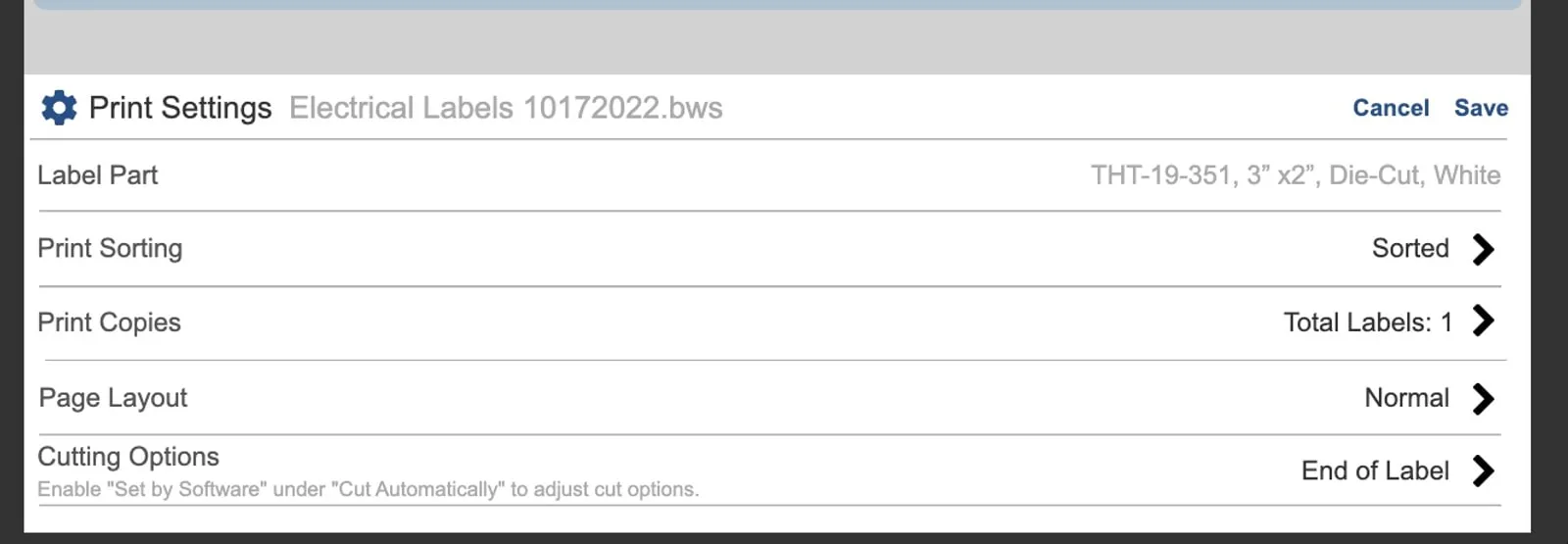
- Open Print Settings when users press Print, matching the behavior observed in testing; provide a one-tap option to skip settings.
- The outcome
- The GUI shipped across seven printer models. Two studies with 11 participants informed the team’s implementation.
Put settings where customers looked for them.
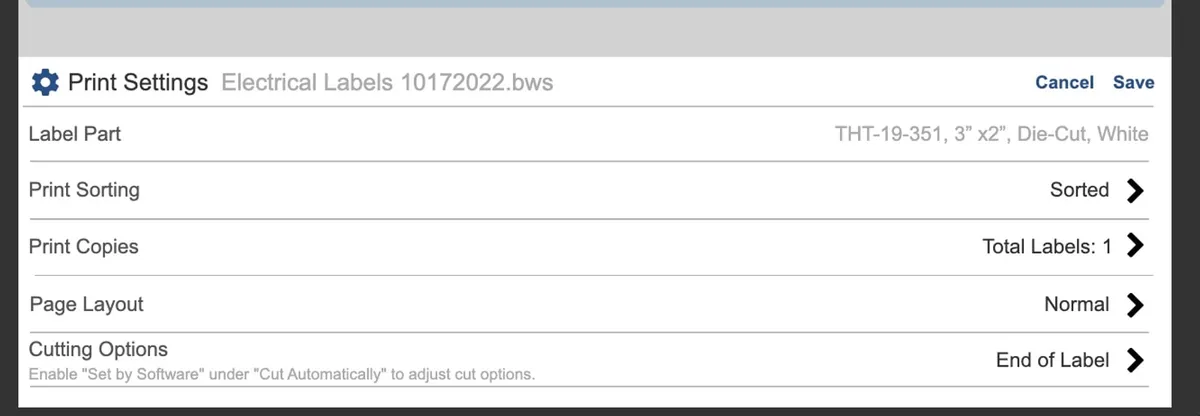
Customers pressed Print first, then went looking for settings—following the desktop behavior they already knew.
Open Print Settings from Print, with a one-tap way to skip settings for repeat jobs.
The study finding became a concrete interaction decision shared with Firmware and incorporated into the product.
From desktop-only to on-device.
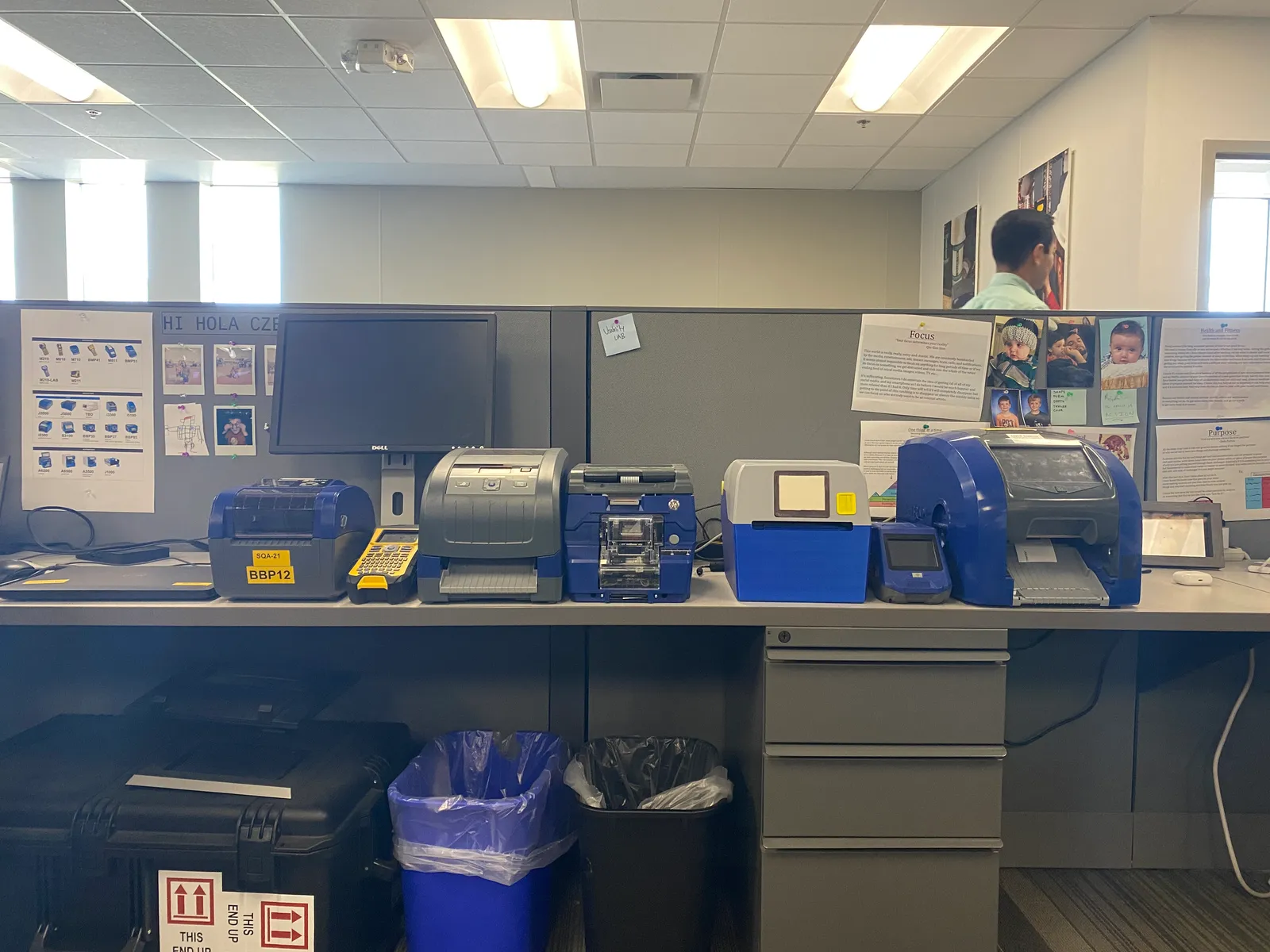
Template printing was one of Brady’s most-used workflows — but it lived on the PC. A customer designed a label in Brady Workstation (BWS), then stayed tethered to a computer to populate and print it. Print Engine’s goal: move that onto the printer — transfer a template file to the device, fill in its fields on the touchscreen, and print.
The PX and Firmware teams worked in unison to define how populating and printing a template (.bwt / .bws) would work directly on a 7-inch printer screen. My job was the experience: how customers find a template, edit it, switch between single- and multi-label views, set print options, and print — without the desktop app they were used to.
The failures in a usability session are the cheapest, most honest design feedback you’ll ever get.
On usability testing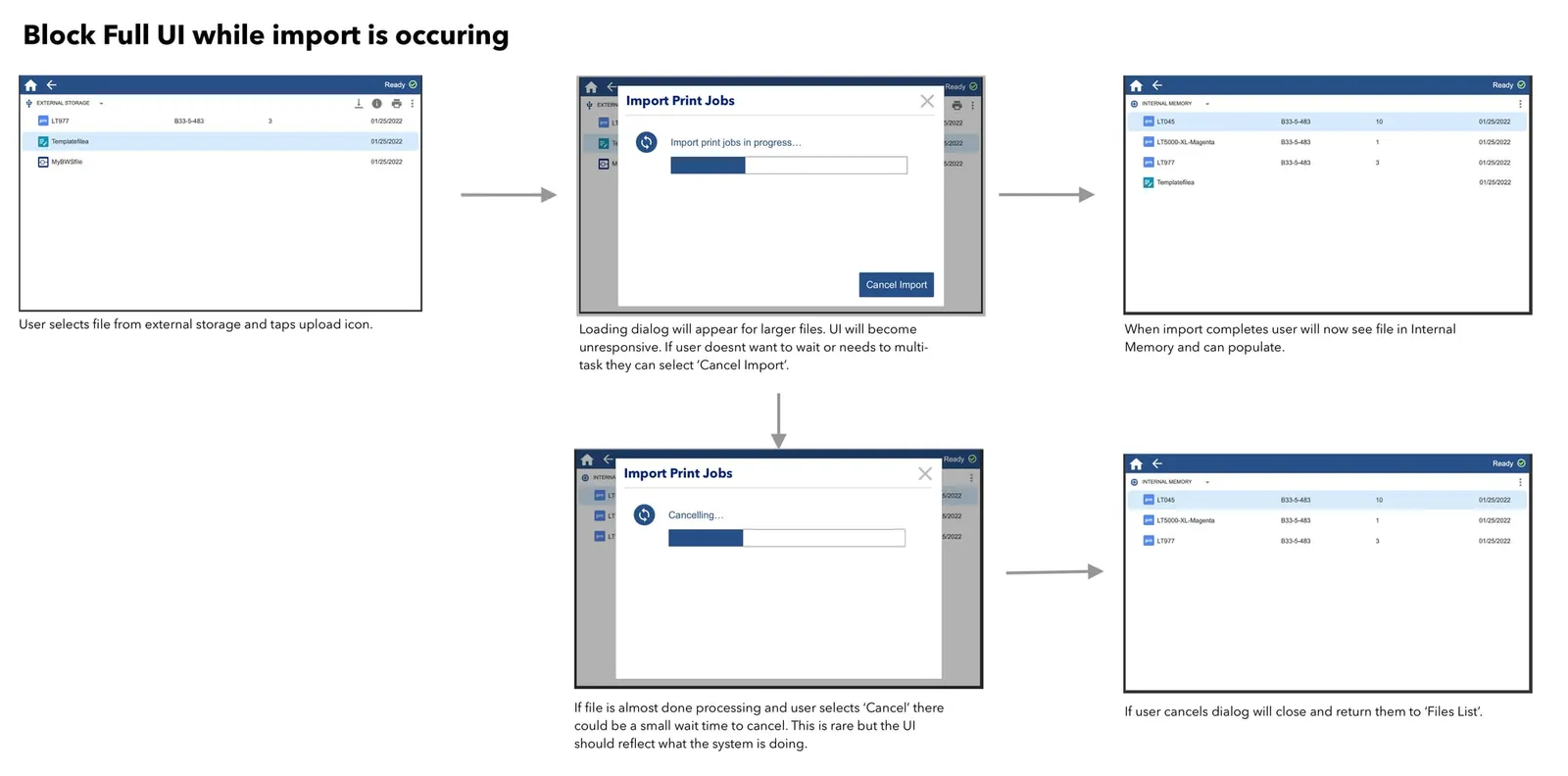
Three problems that shaped the release.
Two screens, one mental model
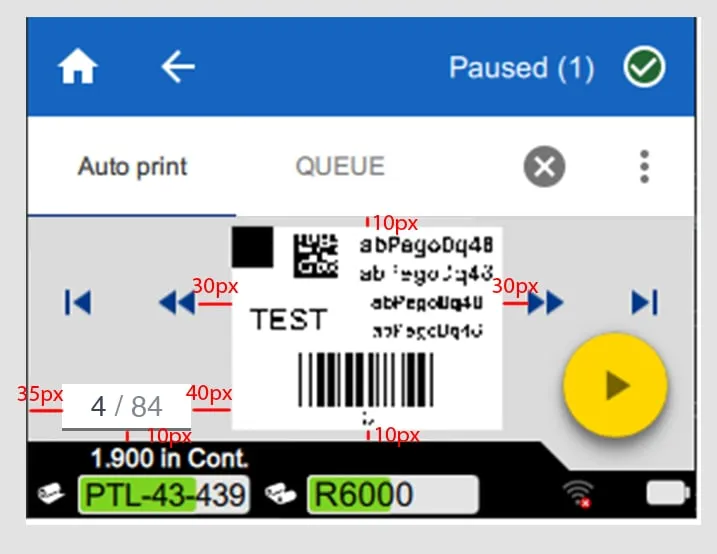
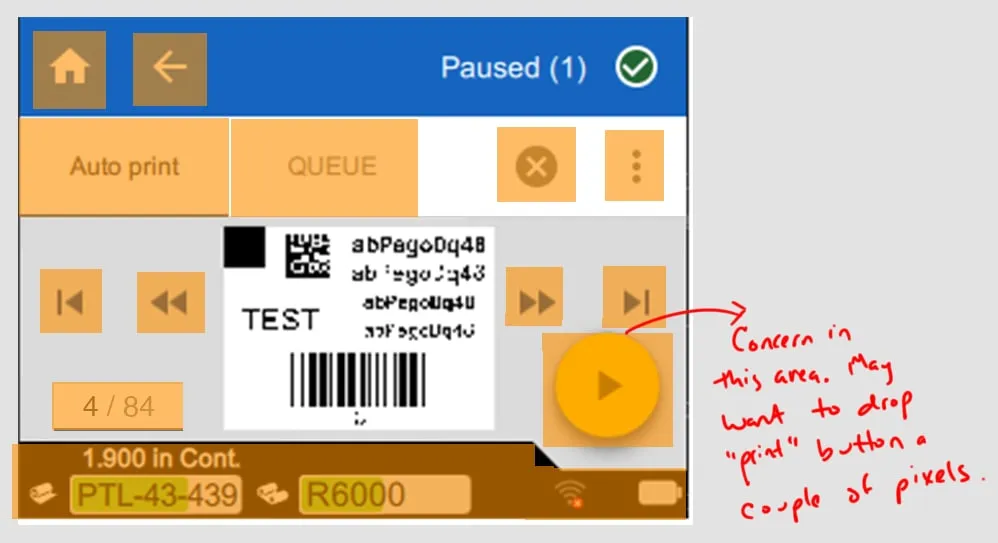
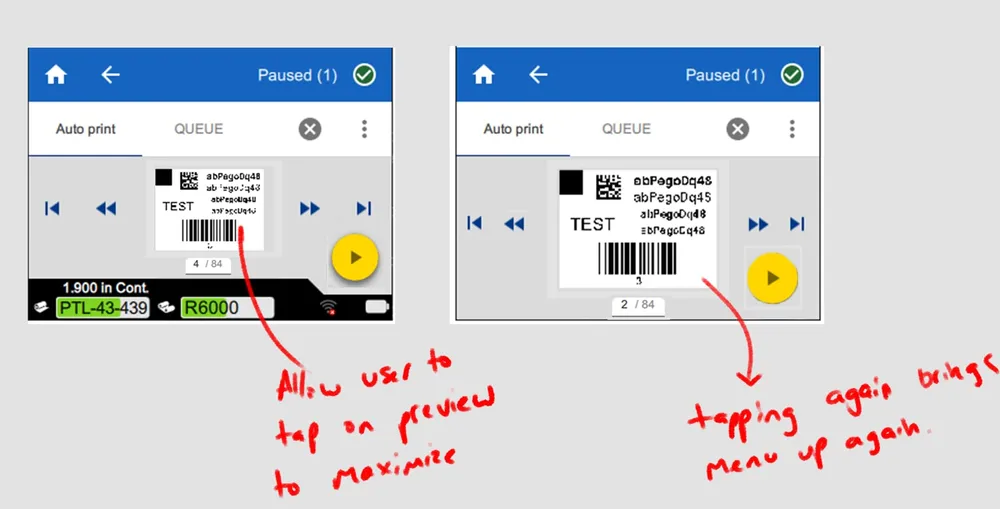
The workflow had to feel native on a spacious 7-inch touchscreen and a cramped 3.5-inch one. I refactored the legacy 3.5″ print screen down to the pixel — touch-target sizing, pagination placement, and a tap-to-maximize label preview to reclaim space.
Template vs. print job
Customers didn’t share our mental model. “Save” could silently overwrite the original template; the single- vs. multi-label icons didn’t read; people expected to change print settings inside the print app. These weren’t guesses — they surfaced in testing.
No PC to fall back on
On the desktop, Brady Workstation carried the complexity. On-device, every interaction had to be self-evident to a panel-shop operator or a maintenance tech mid-task — raising the bar on iconography, discoverability, and how tappable things felt.
Research, redlines, and the iteration that shipped it.
I built the 7-inch experience as an interactive Axure prototype — the artifact we tested with customers, reviewed with Firmware, and iterated against.
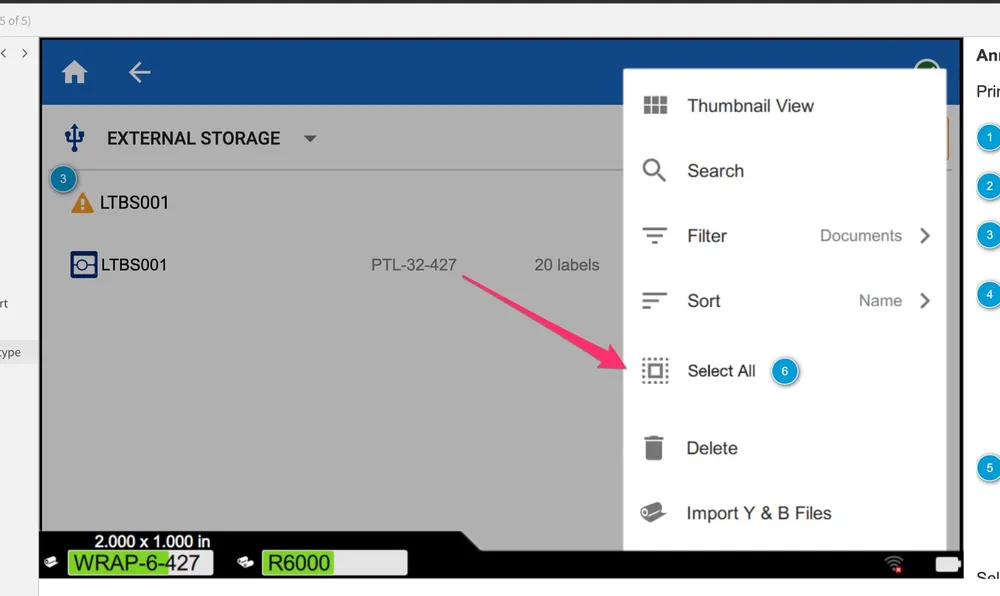
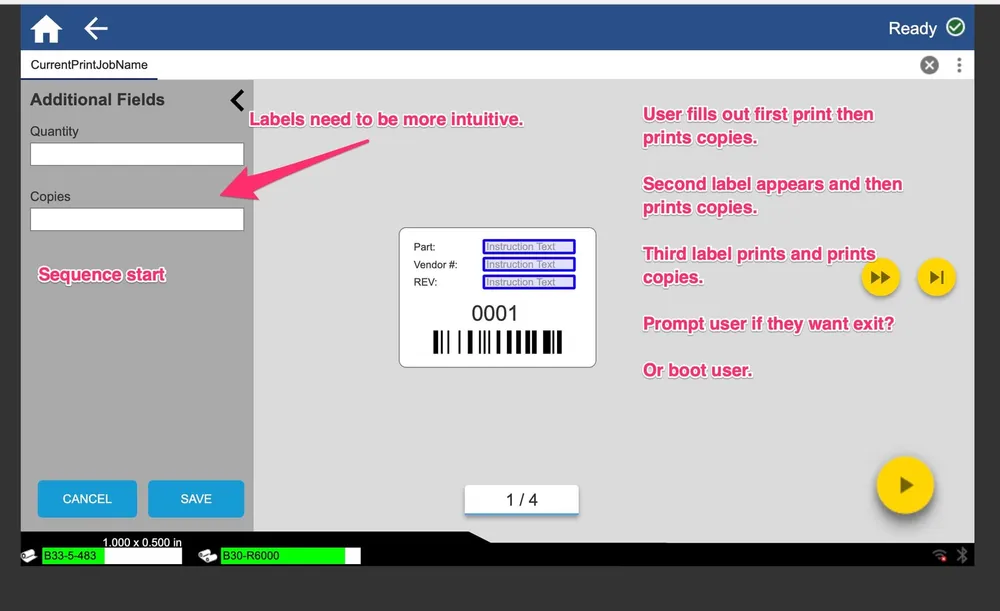
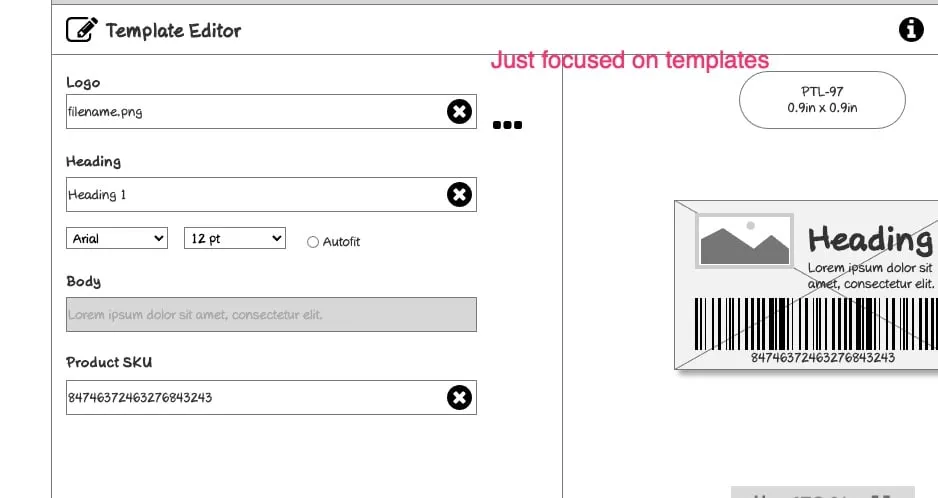
The smaller 3.5-inch screen got a pixel-level pass: touch-target sizing, pagination placement, and a tap-to-maximize label preview so the barcode didn’t crowd out the controls.
Supporting artifacts: Redlines — spacing and touch targets
The 7-inch experience went through two moderated usability studies. The first tested template printing with six customers across site visits in Good Hope and Camden. The second, focused on Print Settings, tested five more — Manufacturing, Tech Support, and SQA — in person and remote. Both were think-aloud, one-on-one, on a hi-fi prototype. The headline finding was a mental model: almost everyone hit Print first, then went looking for settings — trained by years of Windows and Mac. So we made Print Settings open automatically when you print, with a one-tap way to skip it.
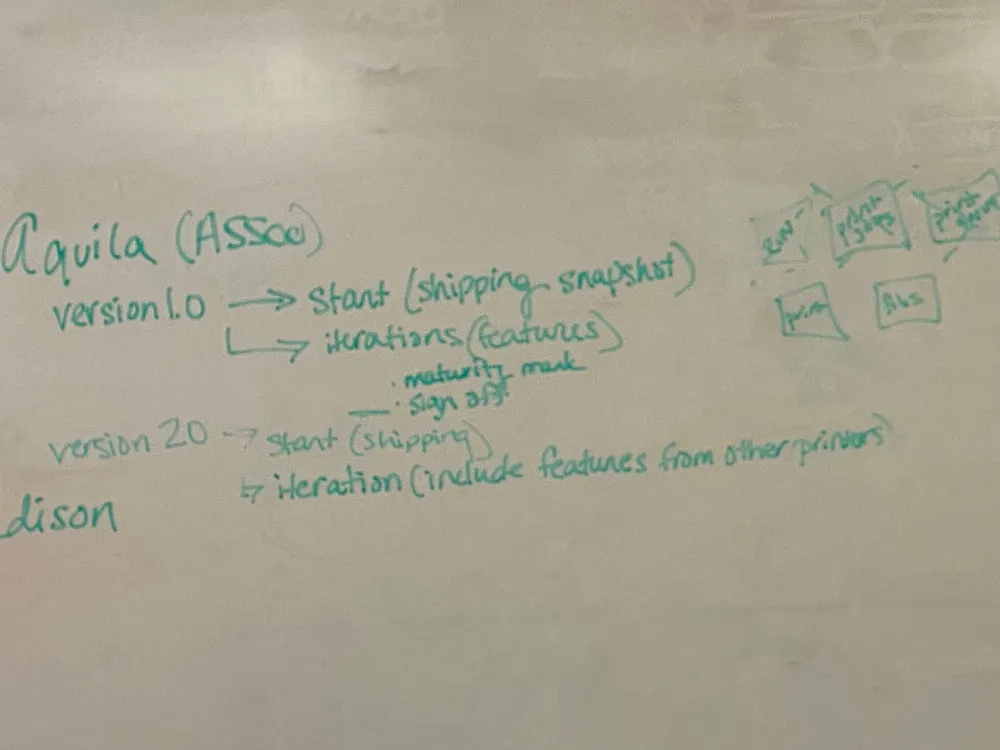
Supporting artifacts: Planning the studies — Aquila / Edison
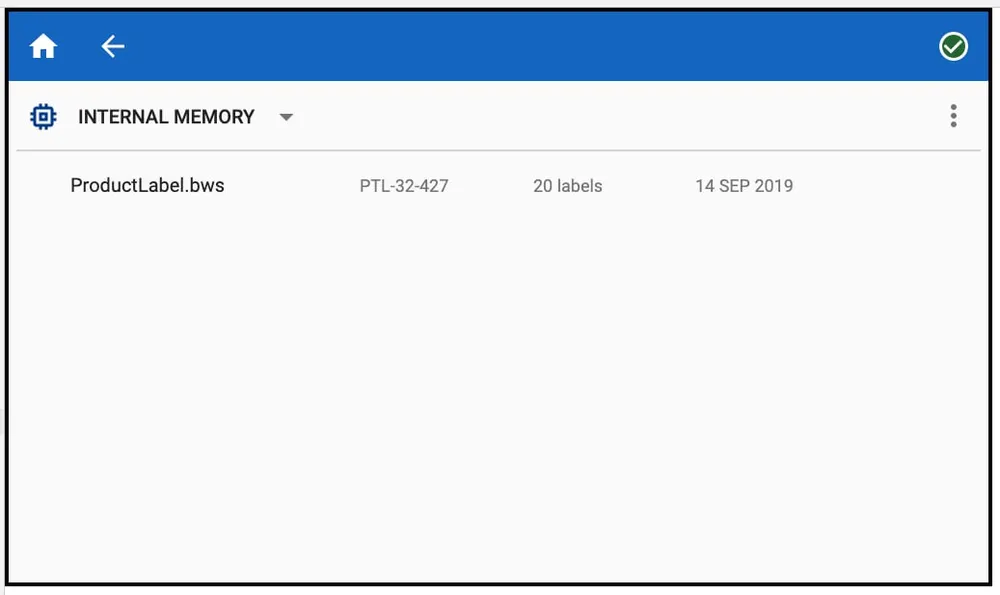
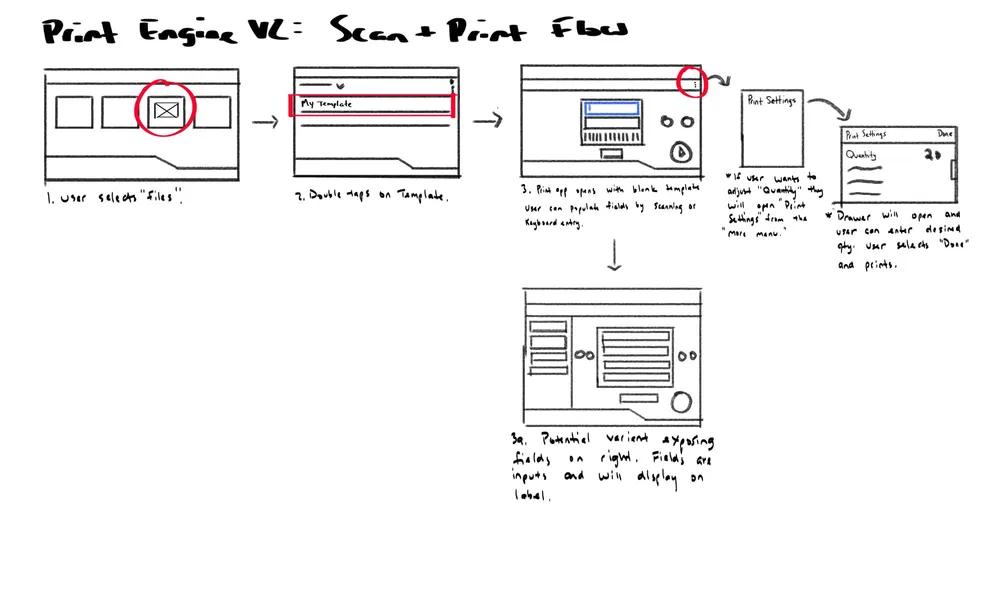
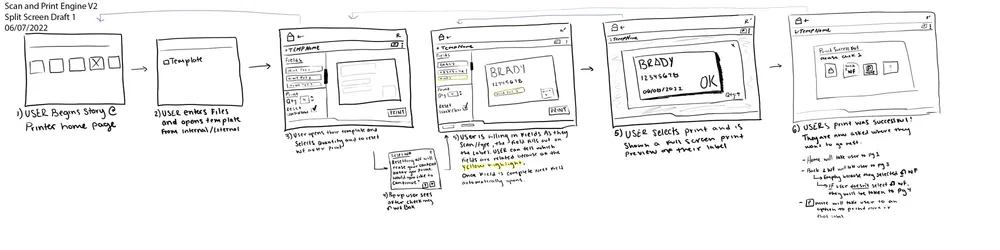
For v1.5 we added Scan + Print — populate a template’s fields by scanning a barcode instead of typing, then print. A storyboard aligned Firmware, product, and the shop floor on the flow before a line of code was written.
Supporting artifacts: Scan + Print — flow storyboard
Supporting artifacts: Print Settings — the shipping on-device experience
It became the GUI for a whole fleet.
Print Engine — internally, AEPP — became the on-device GUI running across Brady’s printer line: the J7300, A6200, A6500, A5500, I7500, M611, and I5300. What began as template printing on a single 7-inch screen grew into the interaction language for a whole fleet of very different machines — one cohesive experience, one mental model.
The two in-person usability studies became the shared reference that aligned PX and Firmware on what to change — and most of what we learned shipped: a grid multi-label view, print settings inside the Print app, a global quantity control, Save As over Save, and bigger touch targets.
2 studies · 11 participants
9 think-aloud tasks
J7300 inkjet
A6200 · A6500
A5500 · I7500
M611 · I5300
Think-aloud protocol
In-person, one-on-one
Good Hope & Camden · remote
The best part of on-device design: the person using it has no manual, no mouse, and no patience — so you have to be right.
— Alan Schwegler · Lead UX Designer, BradyBrady — Product Experience
Product Experience (PX) team
Alan Schwegler — Lead UX & research
Caitlin Rodriguez — Print Settings research
Brady — Firmware & Product
Firmware engineering — on-device build
Global Product Management — GPM